A teacher account, screen by screen.
This page walks through a WRITE it! teacher account the way a teacher uses it during a week: setting up classes, assigning a passage and prompt, watching students work, and reading the reports that come back. The teacher, the students, and their writing are invented for this walkthrough. The screens are the real product, captured at full size, so you see exactly what a teacher sees.
Nothing on this page opens the tool. Each image is a still of one screen. To try WRITE it! with your own roster, request a quote and we will set up a live account for your team.
Sample class: Ms. Rivera, 3rd Period ELAR, Grades 3-5. Student names are first name and last initial only. The suggested grades on the report screens were produced by the product's own rubric scoring from the sample writing.
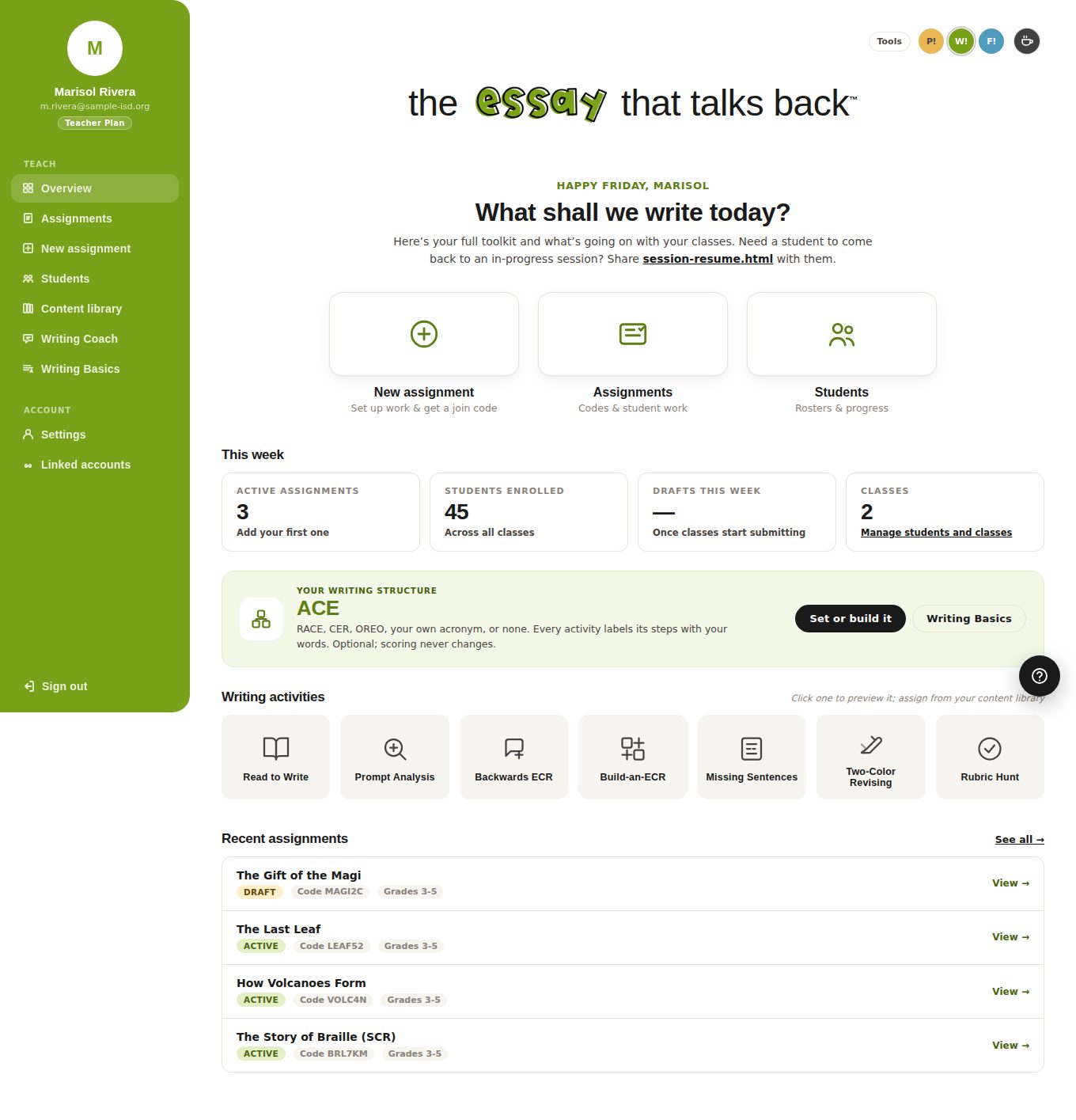
The teacher's home screen
Ms. Rivera signs in and lands here. Her two classes, three active assignments, and the seven writing activities she can assign are each one click away. The recent assignments list links straight to student work.
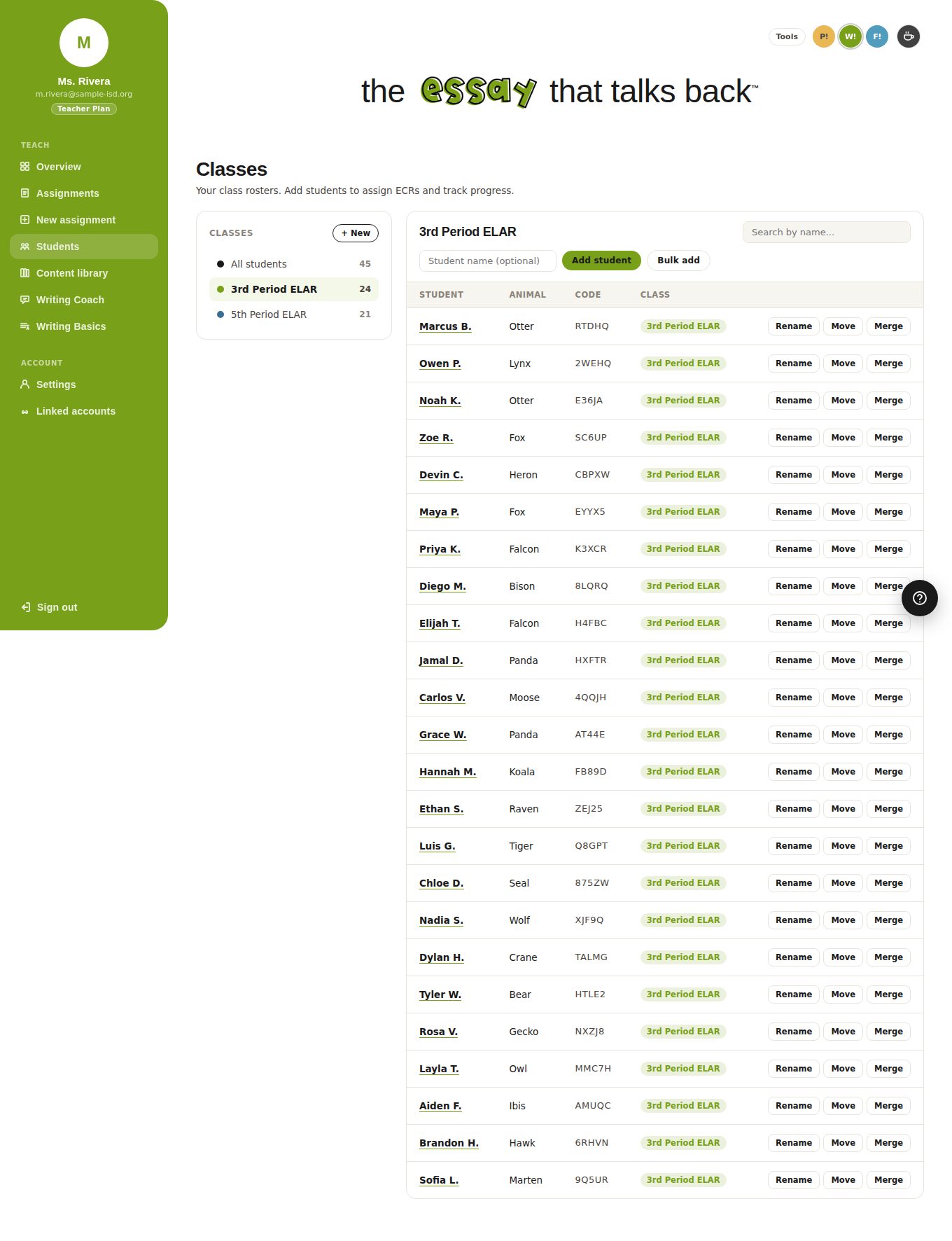
Class rosters, no student accounts
Each class is a roster of first names and last initials. Every student is assigned an animal and a five-character code, so there are no student logins or passwords to manage. Students can be added one at a time or pasted in bulk.
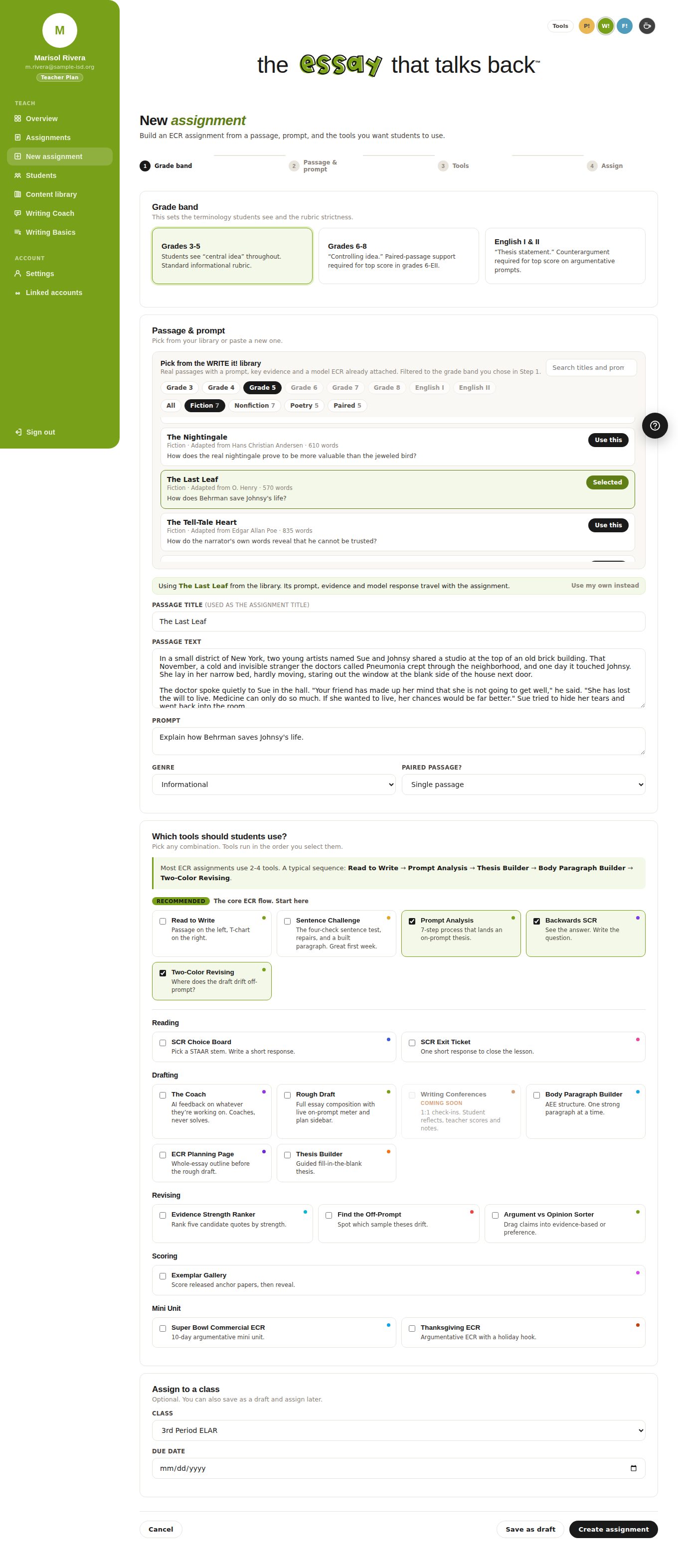
Building an assignment from the library
She picks a grade band, then a passage and prompt from the built-in library. "The Last Leaf" arrives with its prompt, key evidence, and a model response already attached, and the passage text and prompt fill in below. She then checks the activities students will complete, in order, and assigns it to a class.
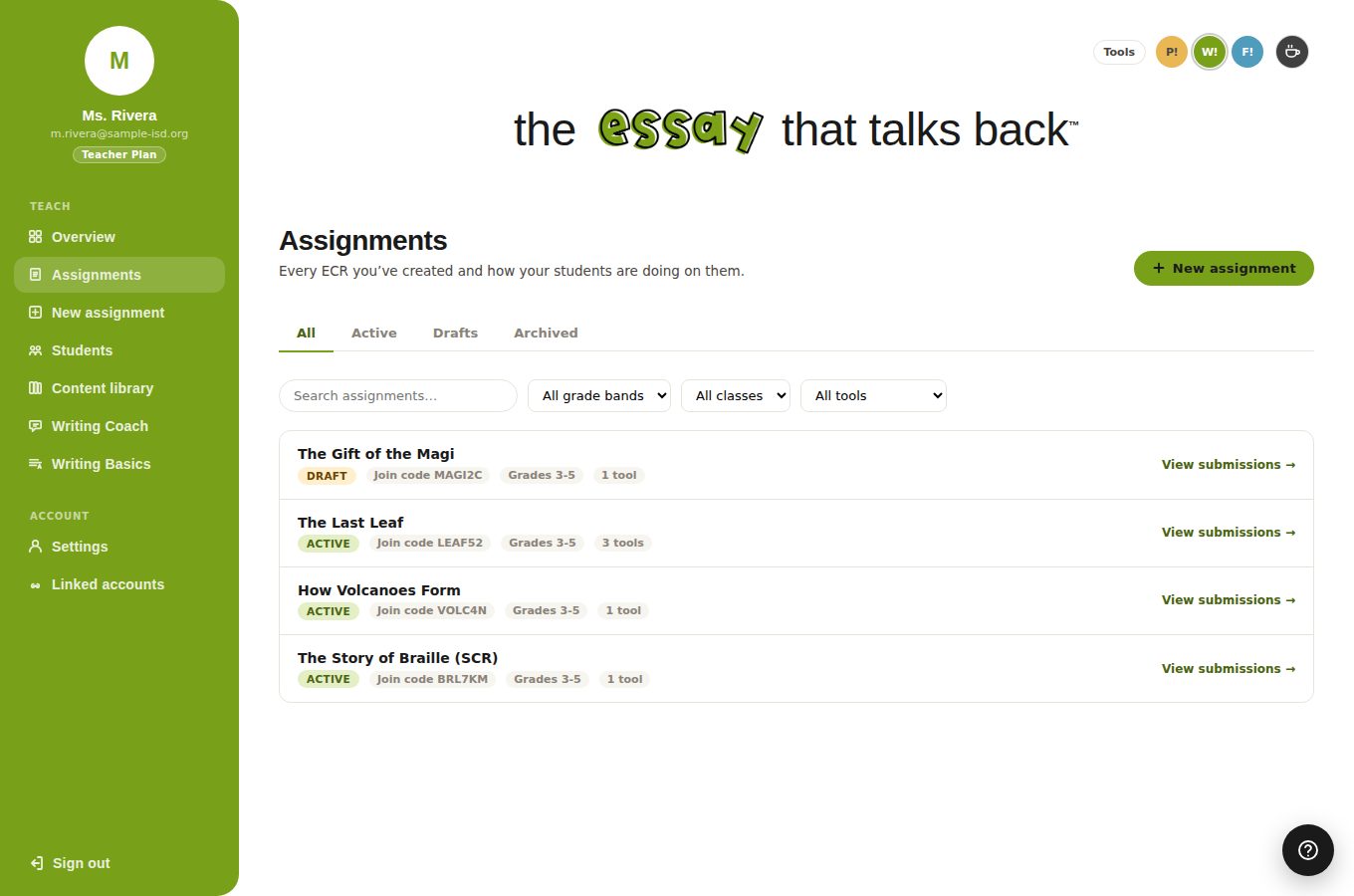
Every assignment has a join code
Each assignment gets a six-character join code. Students type the code, not a login. The list shows which assignments are live, which are still drafts, and how many activities each one includes.
What a student sees when joining
A student enters the join code and the name on the roster. They receive a resume code so they can pick up where they left off later, on any device, and then open the first activity.
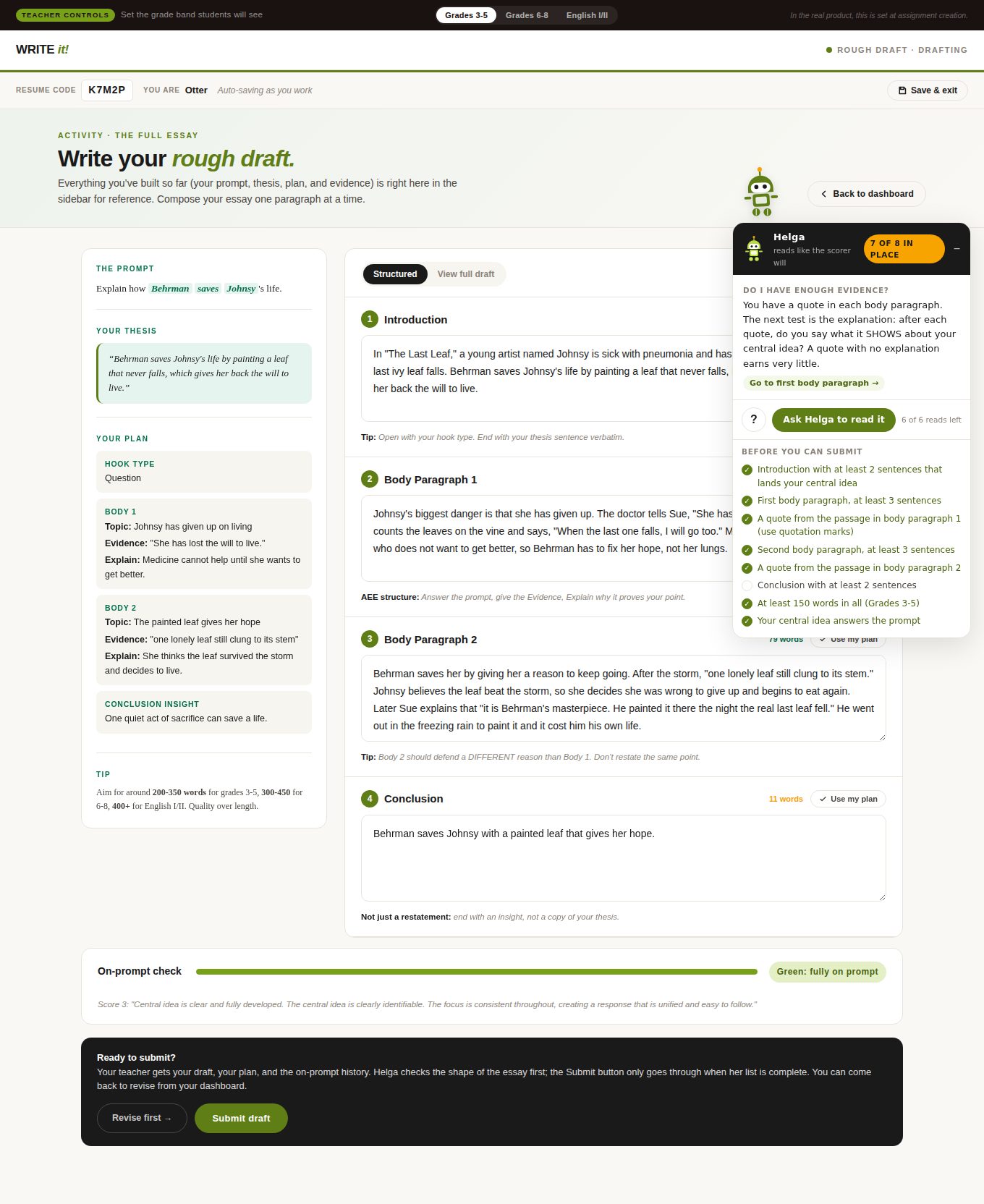
Drafting with Helga, the writing coach
The student writes one paragraph at a time with the prompt, thesis and plan beside them. Helga reads the draft the way a STAAR scorer would. Here she has answered the student's question about evidence, and her checklist shows the conclusion still needs a second sentence. The Submit button does not go through until the list is complete, and the on-prompt meter at the bottom is anchored to the TEA rubric wording.
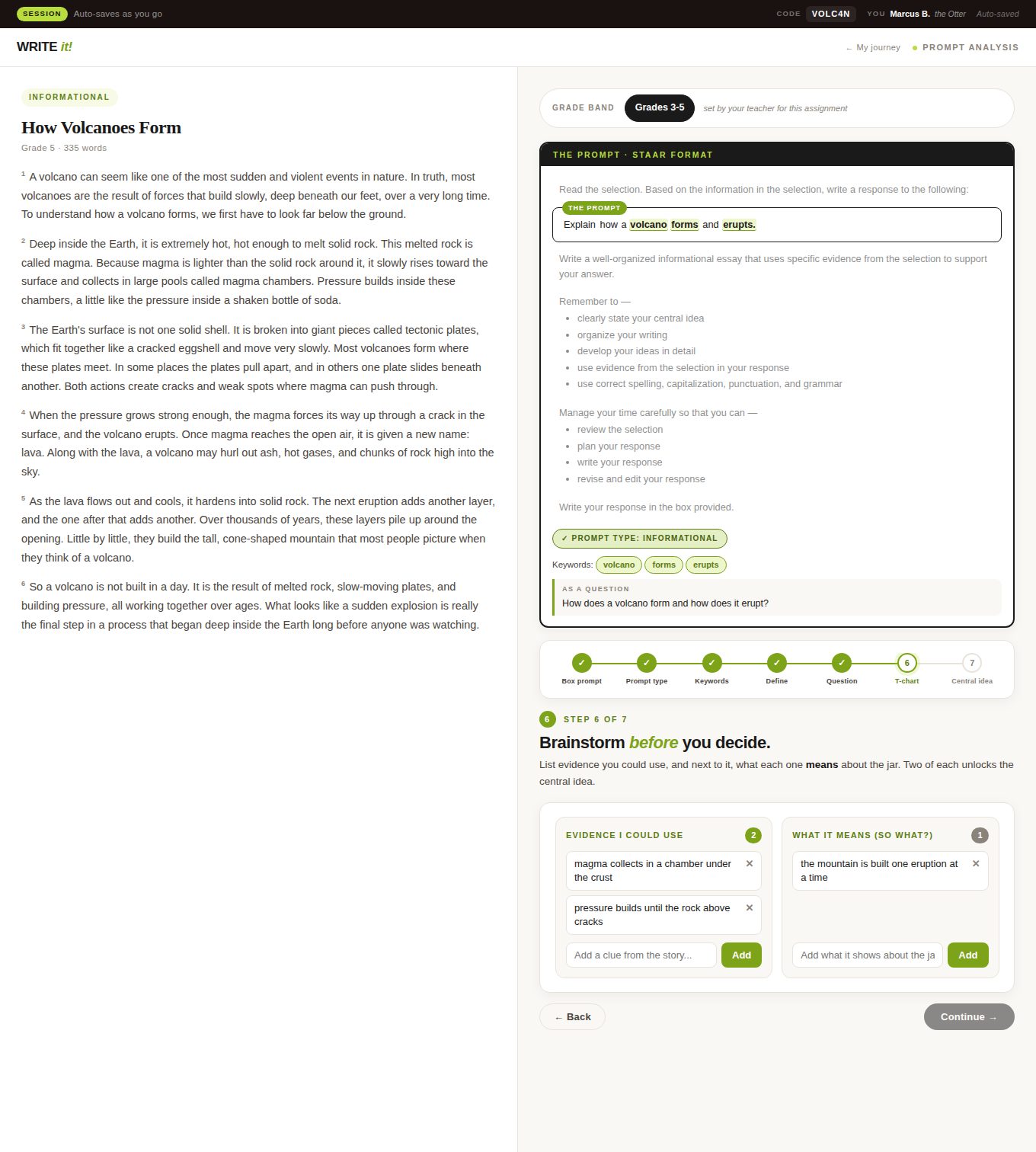
Prompt analysis, one step at a time
Before drafting, the student boxes the actual prompt inside the STAAR-format page, names the prompt type, taps the keywords, defines them, and rewrites the prompt as a question. Step 6 is a T-chart of evidence and meaning. The grade band and its wording are set by the teacher, not the student.
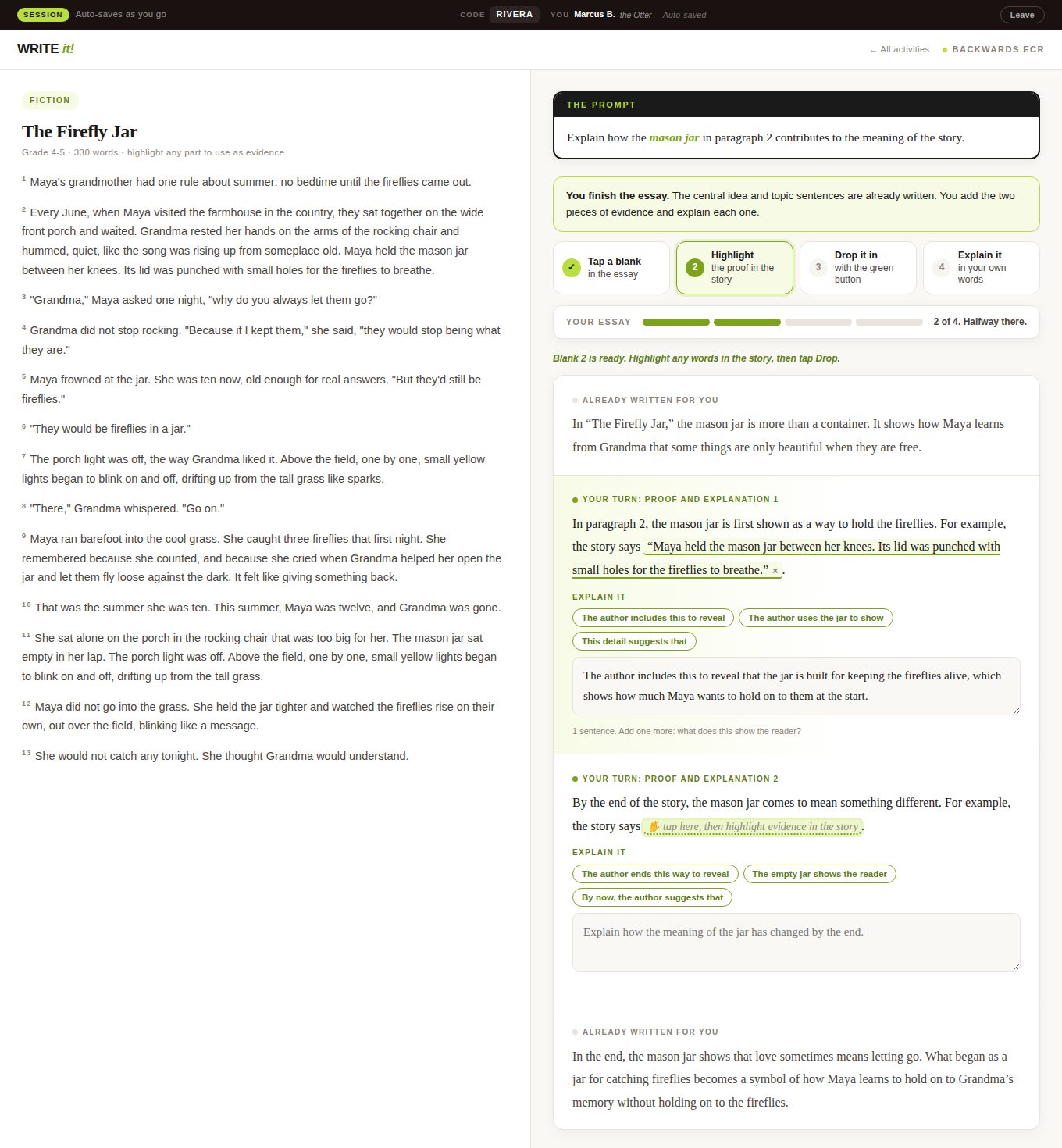
Backwards ECR: the frame is written
The introduction, topic sentences, and conclusion are already written. The student highlights proof in the passage, drops it into the blank, and explains what it shows in their own words. This screen uses the built-in practice passage, "The Firefly Jar"; the first blank is filled and explained, the second is still open.
The class report for an assignment
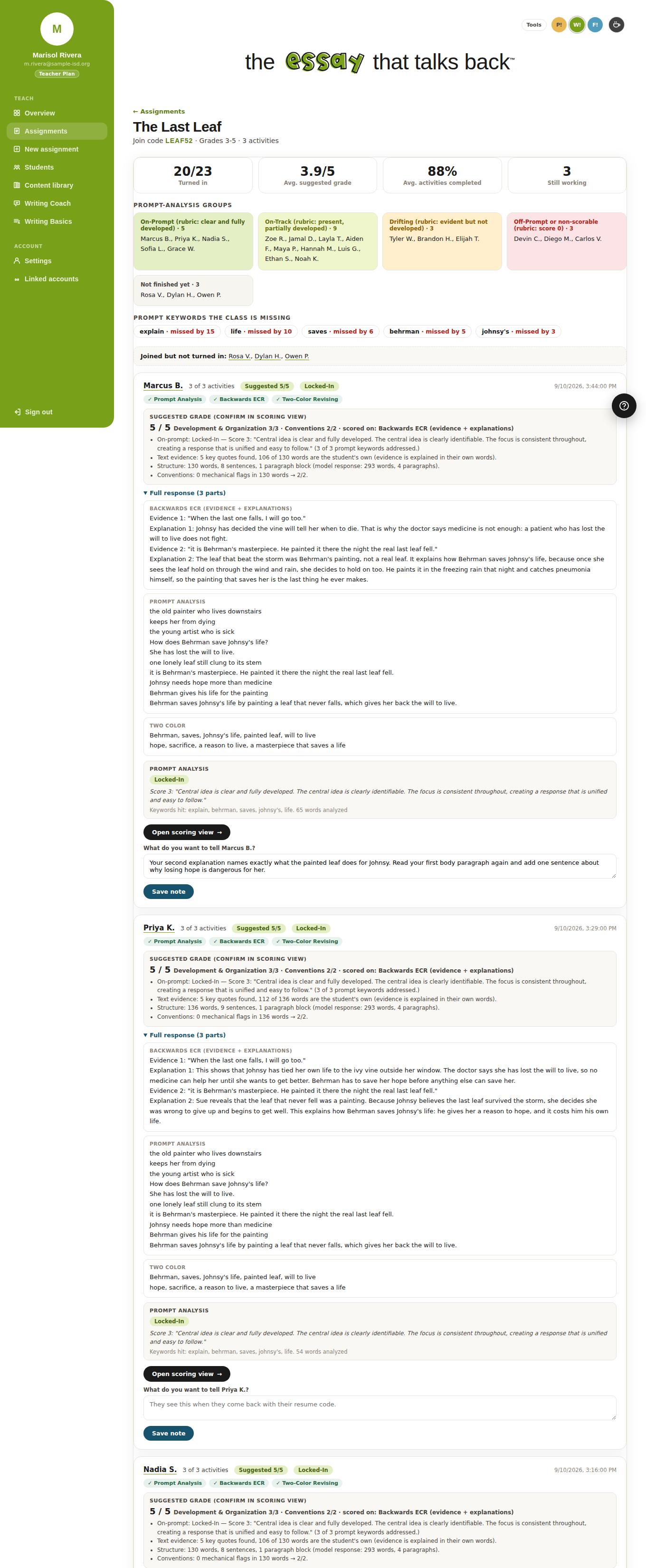
As students turn work in, the teacher sees who has finished, the average suggested grade, and the class grouped by TEA rubric tier. Keywords the class is missing are listed. Each student card shows the response exactly as it was turned in, the suggested grade with its reasons, and a box for a note the student will see. This capture shows the summary and the first three cards of twenty.
One submission, with a suggested grade
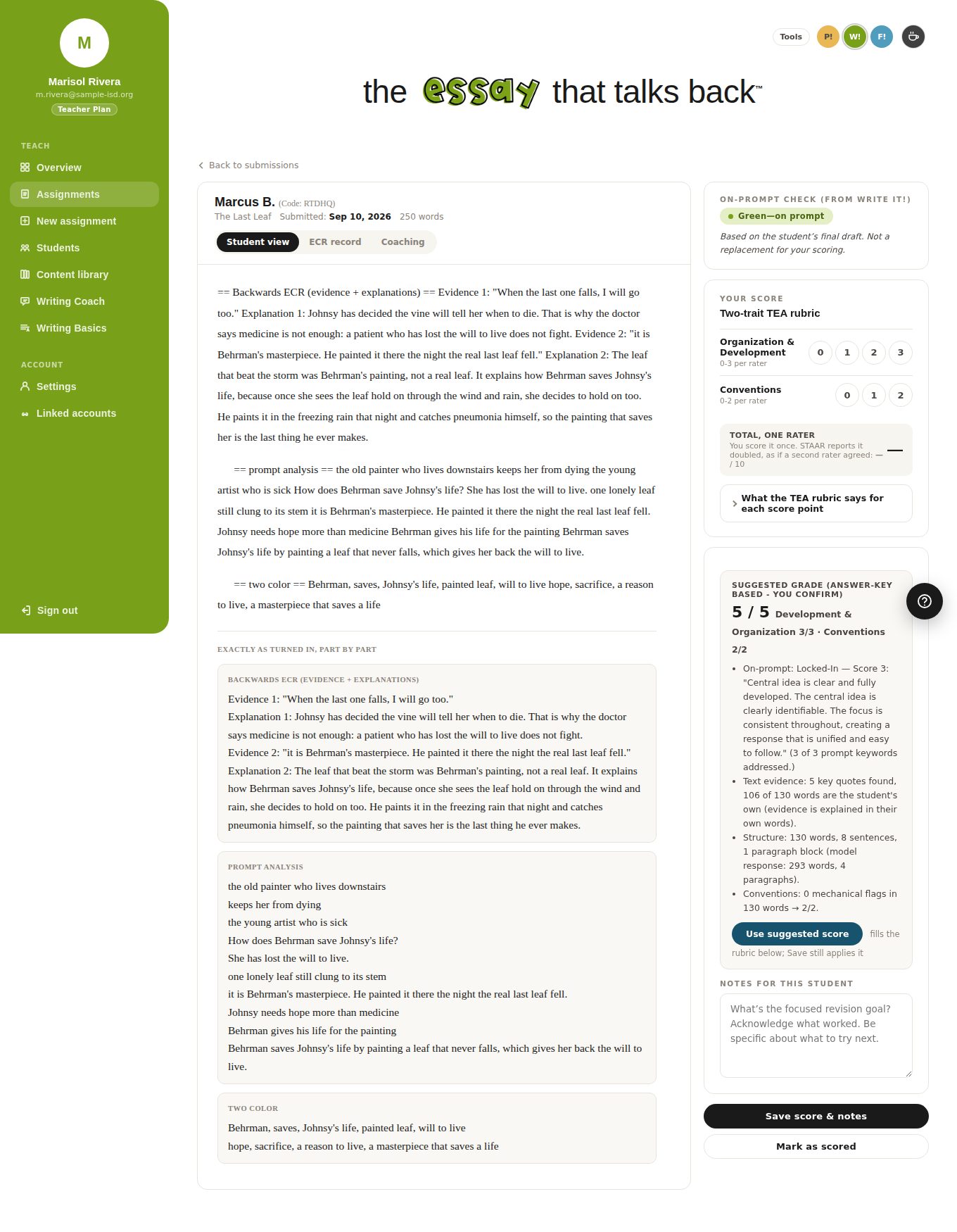
The scoring view shows the student's work part by part and a suggested grade in the TEA two-trait frame: Development and Organization from 0 to 3, Conventions from 0 to 2, with the reasons behind it. The teacher confirms or changes the score and writes a note the student sees when they return with their resume code.
Prompt analysis class report
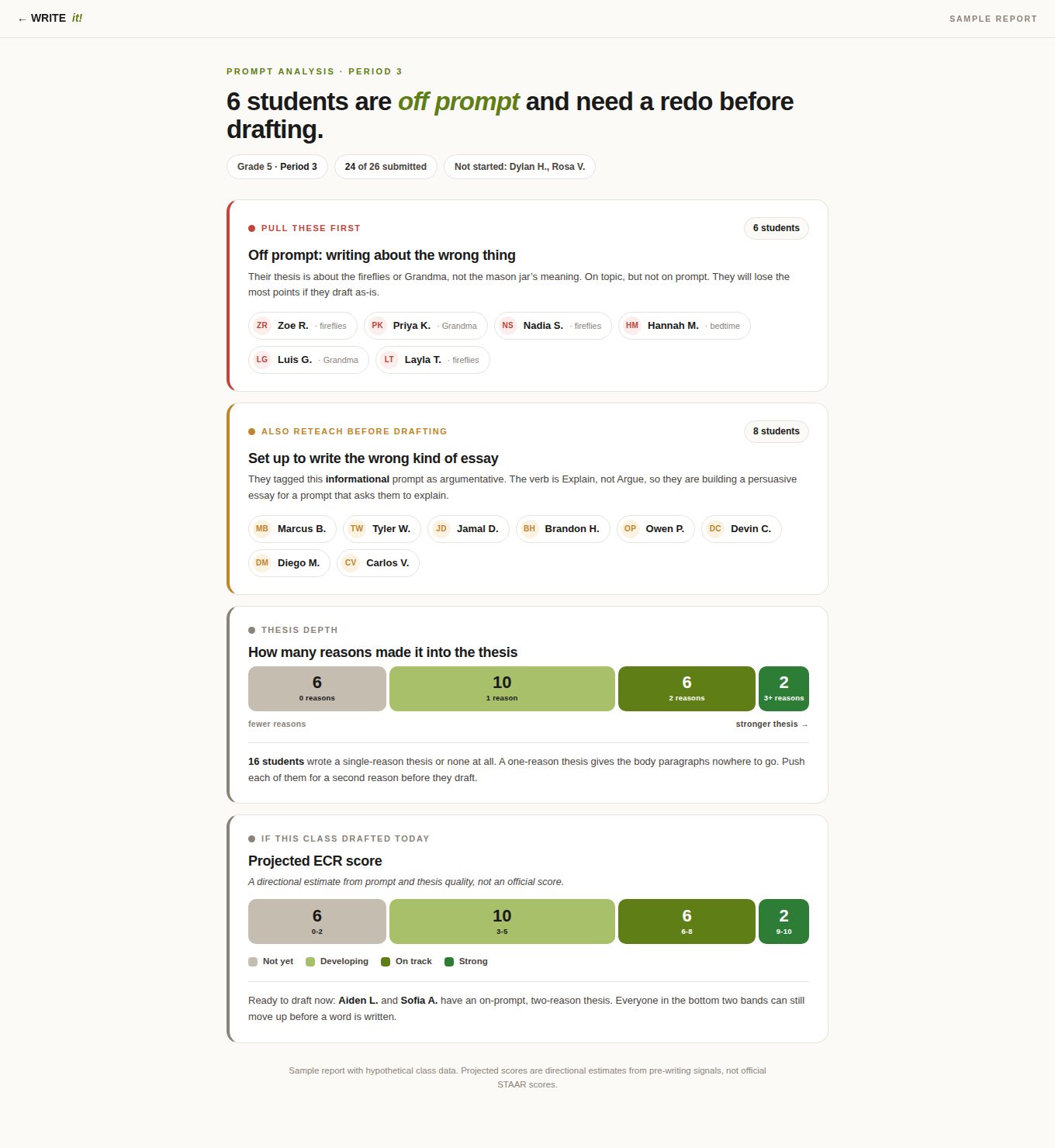
A sample report from the prompt analysis activity. It names the students who are off prompt, the students who set up the wrong kind of essay, how many reasons made it into each thesis, and a directional projection if the class drafted today.
Two-color revising report
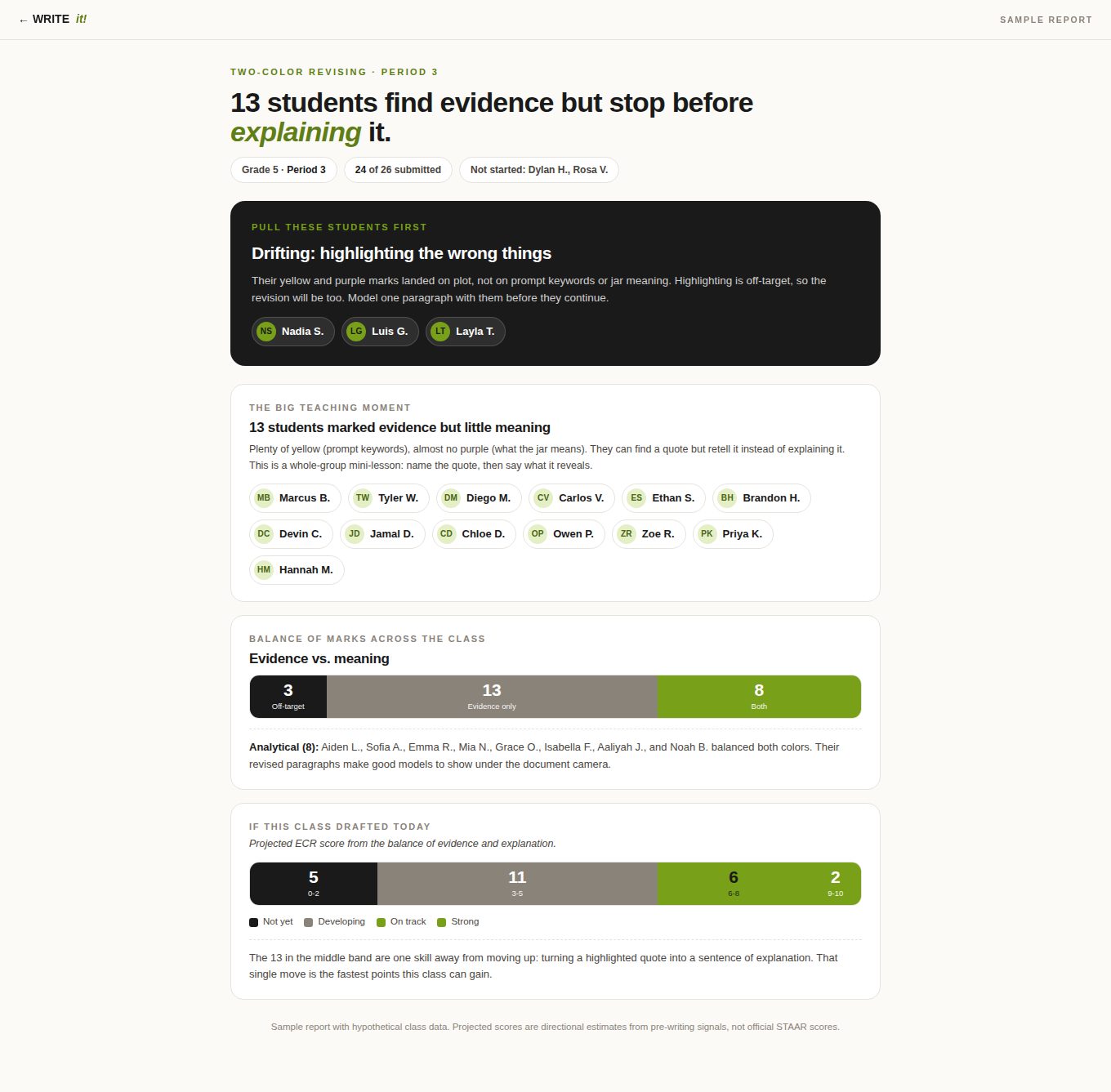
Two-color revising asks students to mark prompt keywords in one color and meaning in another. The sample report shows who highlighted the wrong things, who found evidence but stopped before explaining it, and the balance of marks across the class.
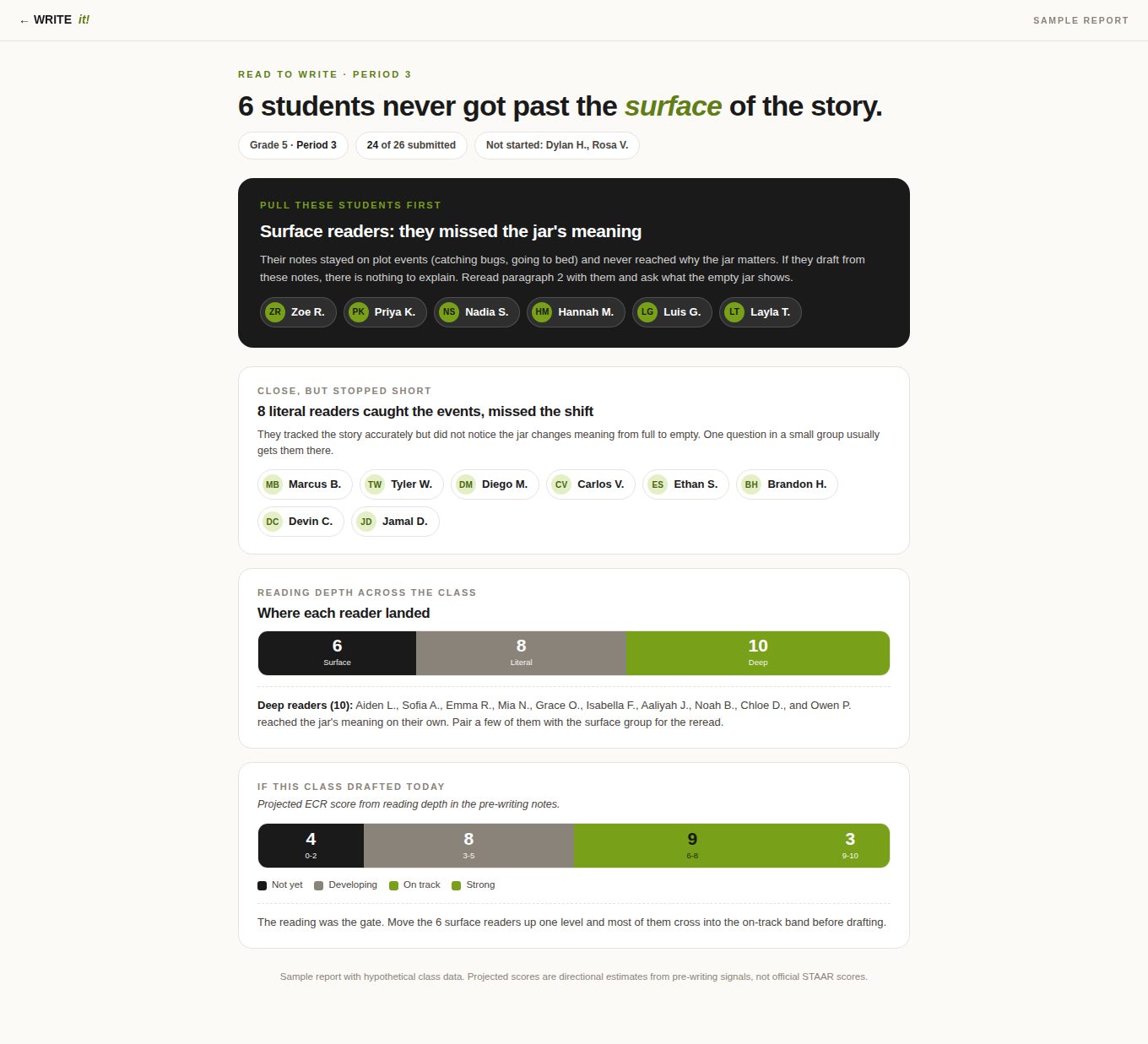
Reading report
The Read to Write report groups students by how far their notes reached into the passage's meaning before any drafting began: surface readers, literal readers, and deep readers, with the same directional projection.
Want to see it with your own roster?
We will set up a live teacher account for your team, with your classes and your passages, so you can walk through the same screens with real work.
All names, classes, and student writing on this page are invented. Screens were captured from the product at 1360 pixels wide.